How to Fix the Canva Desktop App Not Opening on Windows 11


Asif Mohammad Sovon
Asif Mohammad Sovon, IT Assistant at Bangladesh Air Force and Fileion tech writer, simplifies tech t...
You click the Canva icon. Nothing happens. Or the app flashes for a second and disappears. It is frustrating, especially when you are in the middle of a project.
This issue is more common than you might think. Many Windows 11 users run into it after an update, a system change, or a fresh install. The good news is that most of the causes are simple to fix.
In this guide, you will learn why the Canva desktop app fails to open on Windows 11 and exactly how to fix it, step by step.
Let's dive into the basics before moving to the hands-on steps.
What is the Canva Desktop App?
Canva is a graphic design platform used to create social media graphics, presentations, posters, documents, and more. It runs inside a browser, but it also has a dedicated desktop app for Windows and Mac.
The desktop version gives you faster load times, offline access to some features, and a cleaner workspace without browser distractions. Students, freelancers, marketers, content creators, and small business owners use it daily.
When the app stops opening, it breaks your workflow. That is why knowing how to fix it matters.
Key Features
The desktop app allows partial offline use. You can open recent designs without a live internet connection in some cases.
Compared to the browser version, the desktop app loads assets more quickly and feels more responsive on capable machines.
The app integrates with Windows notifications and file handling, making it easier to open and export design files directly from your desktop.
Step-by-Step Guide: How to Fix the Canva Desktop App Not Opening on Windows 11
-
Restart your computer first. This clears temporary system conflicts. Many launch failures are one-time glitches that disappear after a reboot.
-
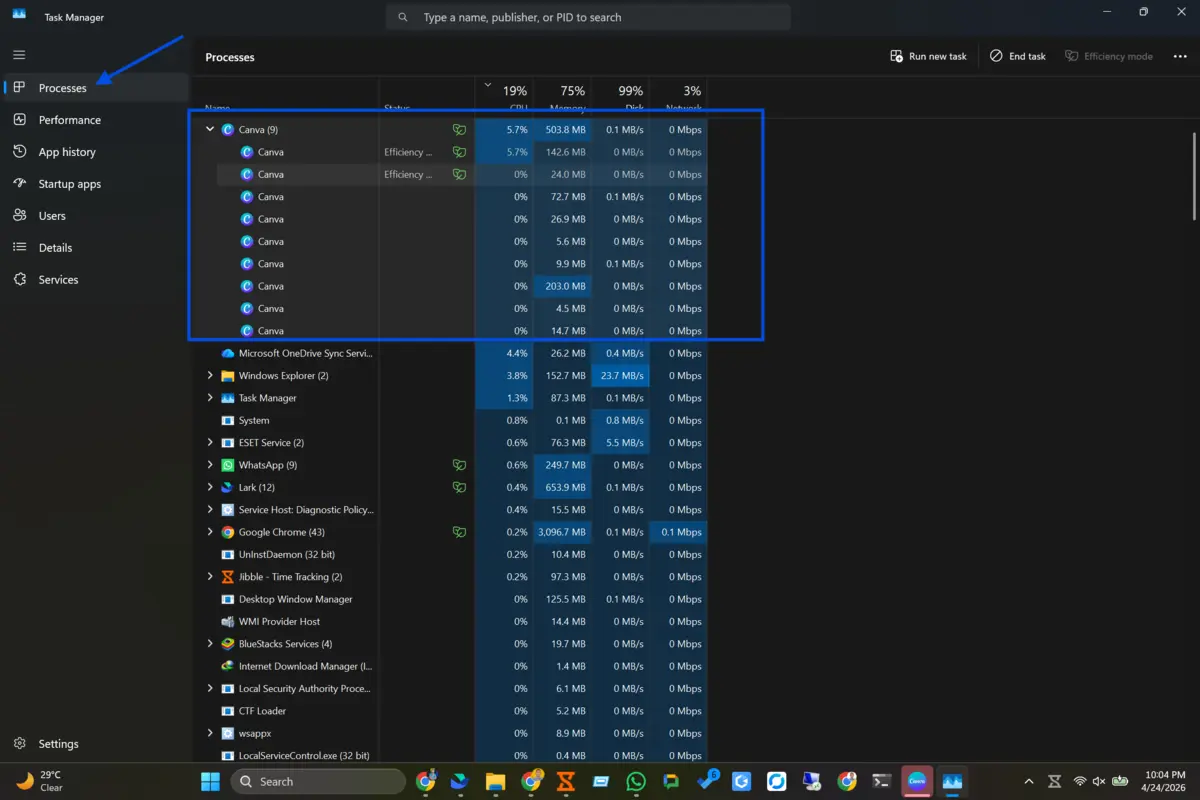
Check if Canva is already running in the background. Press Ctrl + Shift + Esc to open Task Manager. Look for a Canva process under the Processes tab. If you see one, right-click it and select End Task, then try reopening the app.
-
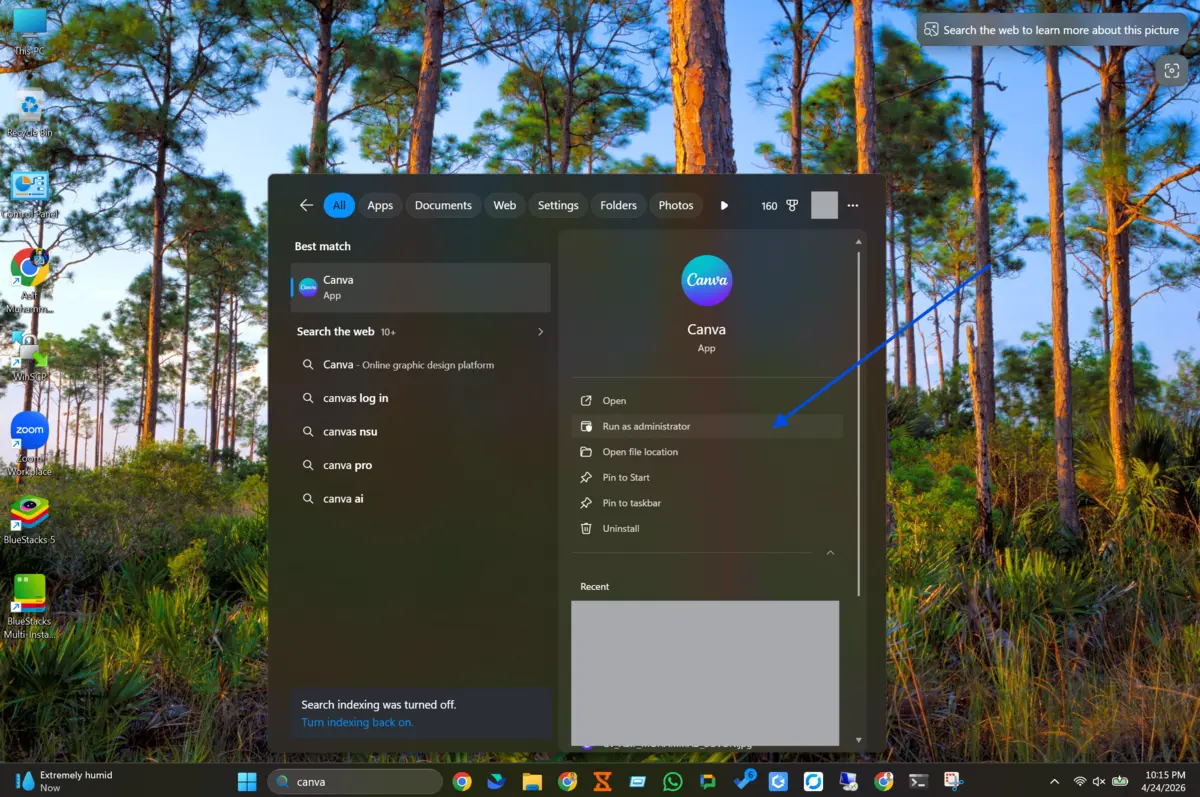
Run Canva as administrator. Right-click the Canva desktop shortcut and select "Run as administrator." Permission issues on Windows 11 often stop apps from launching without this step.
-
Check your internet connection. The Canva desktop app requires an active connection to load. Open your browser and test if any website loads. If not, fix your connection first.
-
Update the Canva app. Open Microsoft Store, go to Library, and click "Get updates." An outdated version of Canva often causes compatibility problems on Windows 11.
-
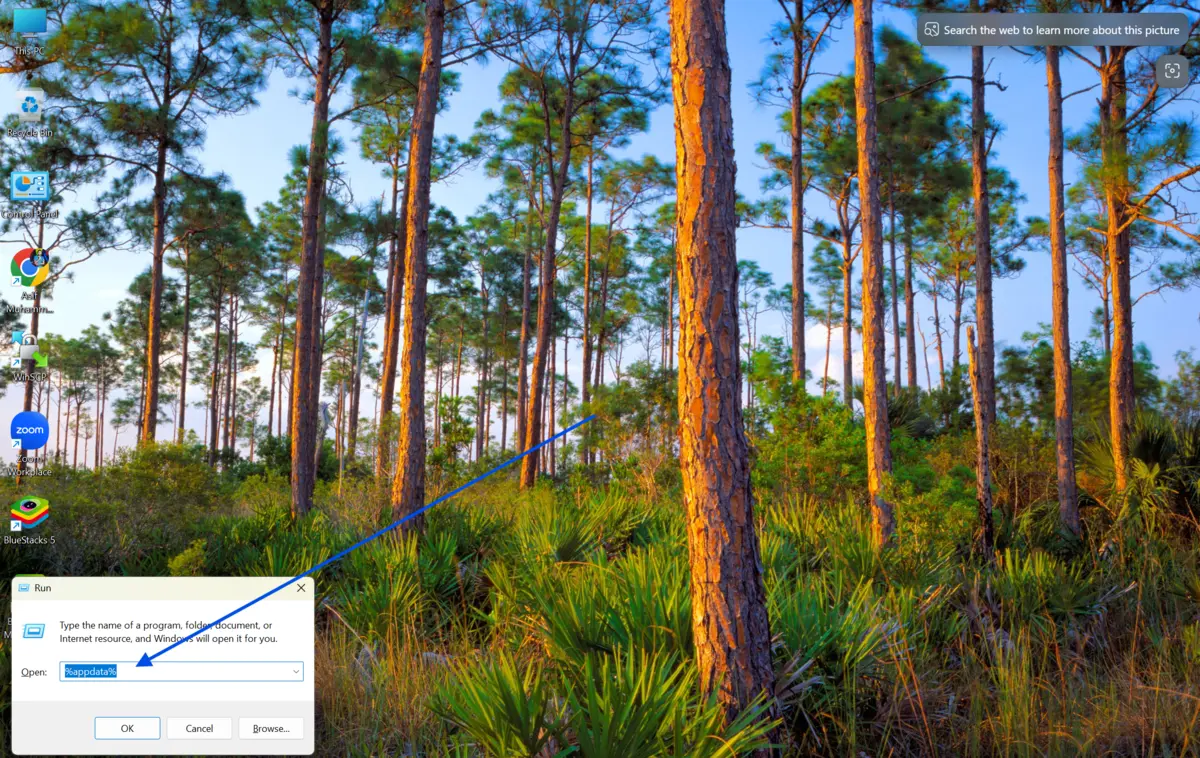
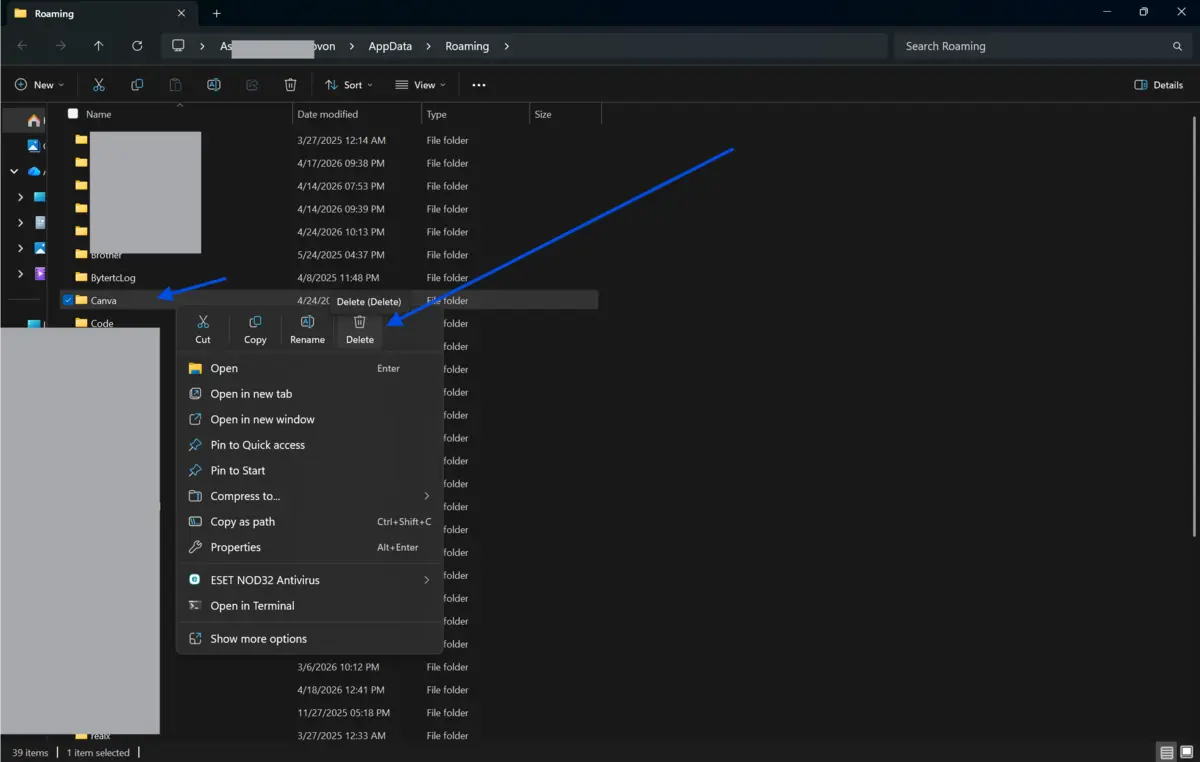
Clear the Canva app cache. Press Windows + R, type %appdata%, and press Enter. Find the Canva folder, open it, and delete the contents inside, not the folder itself. Restart the app after this step. Corrupted cache files are one of the most common causes of launch failures.
-
Repair the Canva installation. Go to Settings, then Apps, then Installed Apps. Find Canva, click the three dots next to it, and select "Advanced options." Scroll down and click "Repair." This fixes broken installation files without removing your data.
-
Reset the app if the repair does not work. Follow the same path as above, but click "Reset" instead. This restores the app to its default state. Note that this clears locally stored app data.
-
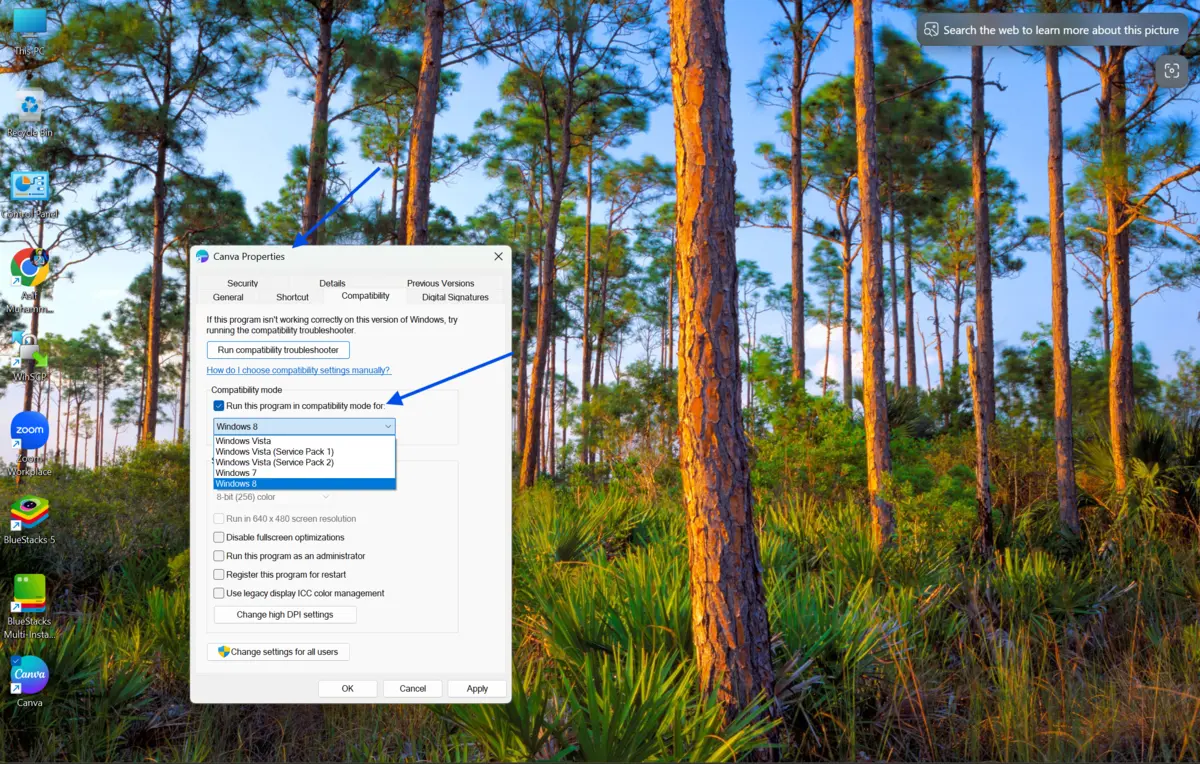
Check Windows 11 compatibility settings. Right-click the Canva shortcut, select Properties, go to the Compatibility tab, and enable "Run this program in compatibility mode for Windows 10." Some app versions behave better with this setting.
-
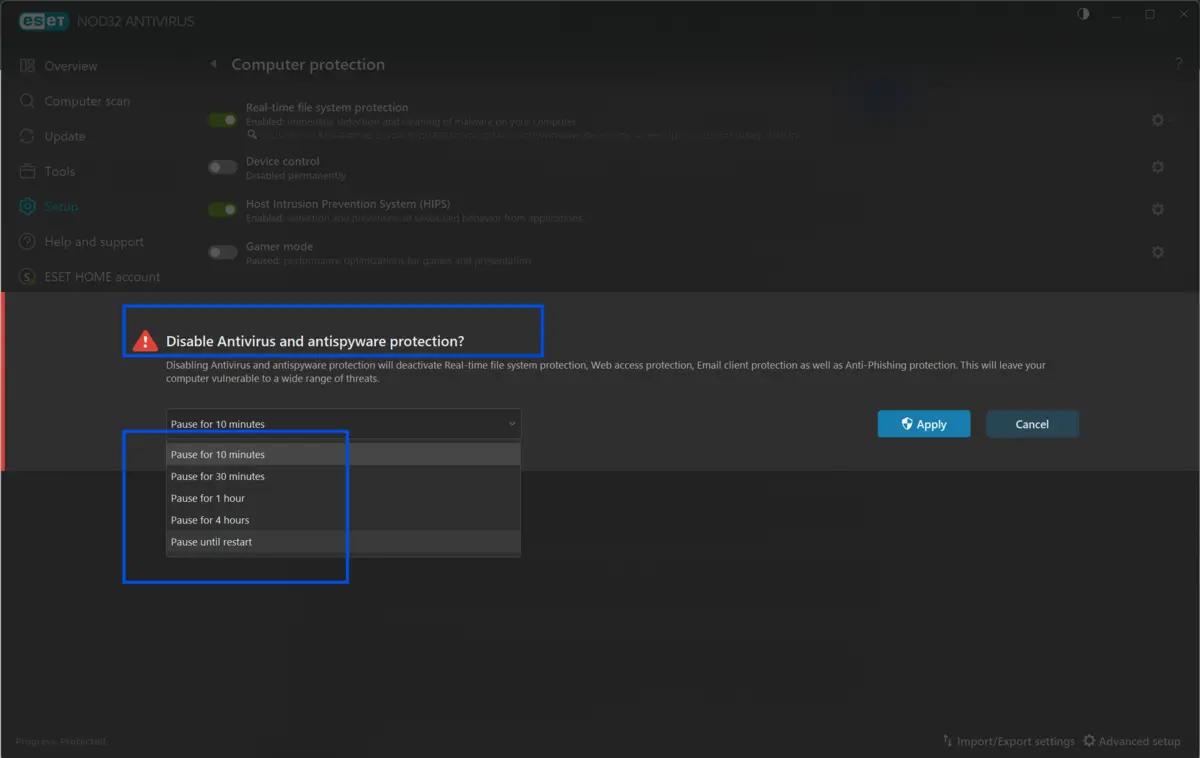
Disable third-party antivirus temporarily. Some security tools block app launches incorrectly. Disable your antivirus for a few minutes and try opening Canva again. If it works, add Canva to the antivirus exception list.
-
Uninstall and reinstall Canva. Go to Settings, then Apps, find Canva, and click Uninstall. Then download a fresh copy from Fileion and install it again. This resolves deep installation corruption.
-
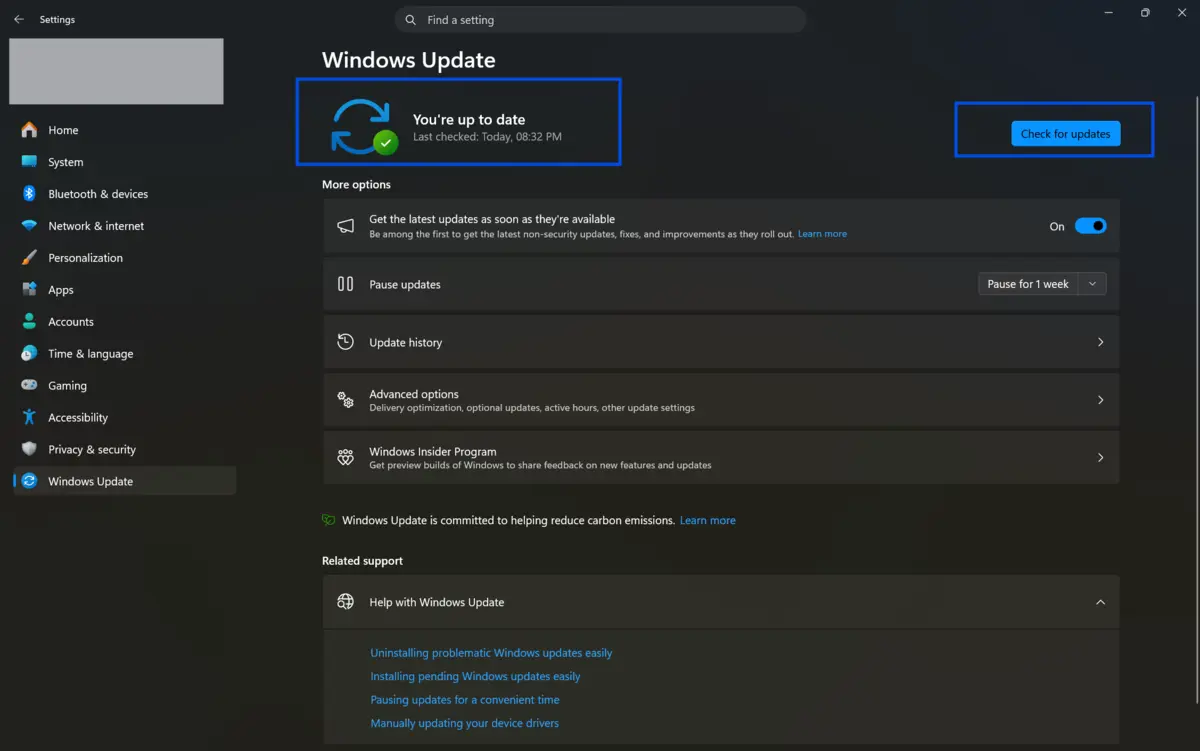
Update Windows 11. Go to Settings, then Windows Update, and install any pending updates. An outdated OS can cause app compatibility failures.
Quick Tips
-
Use the web version at canva.com as a backup while troubleshooting the desktop app.
-
If the app opens but freezes, try reducing the number of background apps running at the same time.
Common Mistakes to Avoid
-
Many users reinstall the app without clearing the cache first. The new installation picks up the same corrupted files, and the problem continues.
-
Always use the App settings to uninstall. Manually deleting the app folder leaves leftover registry entries that cause issues in the fresh install.
-
Trying to open Canva repeatedly without ending the existing background process causes it to conflict with itself. Always check Task Manager first.
Pricing & Availability
Canva is available for free with a solid set of core features. The Canva Pro plan is a paid subscription that unlocks premium templates, brand kits, background remover, and more storage. Canva for Teams is available for groups and businesses.
Canva Free: Canva Free costs nothing. You get the drag-and-drop editor, access to 1.6 million templates, and 4.7 million photos, videos, and graphics. Storage includes 5GB of cloud space and one Brand Kit limited to three colors. It works well for personal projects or testing ideas.
Canva Pro: Canva Pro costs US$18 per month or US$144 per year. It unlocks background remover, magic resize, and translator, plus 3.6 million templates and 141 million premium assets. Storage jumps to 100GB, and you manage five Brand Kits. Pro users also get 10x more AI credits than Free users, with an optional AI Pass add-on for extra usage.
Canva Business: Canva Business costs US$25 per person per month or US$250 per year. It includes everything in Pro, plus 100 Brand Kits, 500GB storage, team admin tools, approval workflows, and a 10% discount on print orders. AI allowance runs at a 20x multiplier for the full team.
Canva Enterprise: Canva Enterprise pricing requires contacting sales. It is built for large organizations and includes everything in business, plus up to 1,000 Brand Kits, 1TB storage, SSO, SCIM provisioning, custom integrations, and a dedicated success manager.
Education Plans: Canva Education is completely free for verified K-12 teachers and students. It includes 100 million copyright-free assets, 25+ AI tools, and integrations with Google Classroom, Canvas, Schoology, and D2L. All data handling is FERPA and COPPA-certified.
The desktop app is free to download for Windows and Mac from Fileion or the official Canva website. No separate purchase is needed to use the desktop version.
Final Verdict
The Canva desktop app not opening on Windows 11 is usually caused by cache corruption, a pending update, a background process conflict, or a permission issue. None of these requires advanced technical knowledge to fix.
Following the steps in this guide, most users resolve the issue in under ten minutes. The step-by-step approach helps you identify the exact cause without guesswork.
Download the latest version of Canva from our site today and get back to designing without interruptions.
FAQs
Why is my Canva desktop app not opening on Windows 11?
The most common causes include corrupted cache files, an outdated app version, a background process conflict, or a Windows permission issue. Running the app as administrator and clearing the cache fixes the problem in most cases.
How do I clear the Canva app cache on Windows 11?
Press Windows + R, type %appdata%, and press Enter. Open the Canva folder and delete the files inside it. Do not delete the folder itself. Restart the app after clearing the cache.
Does reinstalling Canva delete my designs?
No. Your designs are saved to your Canva account on the cloud. Reinstalling the desktop app only affects the local installation. Log back in after reinstalling to access all your work.
Can I use Canva without the desktop app on Windows 11?
Yes. You can use the full Canva platform through any modern web browser at canva.com. The web version supports almost all the same features as the desktop app.
How do I update the Canva desktop app to Windows 11?
Open the Microsoft Store, go to the Library section, and click "Get updates." If Canva has a pending update, it will appear here. Install the update and restart the app.
Comments
Let us know about your thoughts
Explore more articles related to Canva
Here you will find all the latest tips and tricks about Canva. Also you will get many solution of problems which you may face while using this app.

Published at: Apr 18, 2026
7 Canva Design Trends That Will Dominate 2026 And How to Use Them
Your designs feel dated. You're scrolling through social media and noticing everything looks different from...


Creativity Made Effortless Daily.
Canva is an all-in-one creative platform for images, videos, presentations, and AI-powered content. With drag-and-drop tools, templates, Magic Studio AI, and cross-device sync, anyone — from beginners to teams — can design, collaborate, and publish stunning visuals quickly and easily.