Canva AI Tutorial: How to Use Magic Studio for Professional Videos


Asif Mohammad Sovon
Asif Mohammad Sovon, IT Assistant at Bangladesh Air Force and Fileion tech writer, simplifies tech t...
What Is Magic Studio in Canva?
Key AI Tools Inside Magic Studio for Video Creation
Step-by-Step: How to Create a Professional Video Using Magic Studio
Canva Pricing and Availability
Is Magic Studio available on the free Canva plan?
How long are the videos generated by Magic Media?
Can I use Magic Studio on my mobile?
If you have ever spent hours trying to make a video look polished and professional, you already know how much time the editing process can eat up. Canva changed that conversation when it introduced Magic Studio, its built-in AI toolkit designed to simplify the entire creative workflow. Whether you are building a brand reel, a social media clip, or a product demo, Magic Studio brings real AI power directly into the Canva editor.
Magic Studio is not just one tool. It is a collection of AI-powered features that work together inside the Canva interface. Once you understand what each tool does and how they connect, the entire video creation process becomes faster and more intuitive.
This tutorial walks you through exactly how to use Magic Studio for professional-quality videos, step by step.
What Is Magic Studio in Canva?
Magic Studio is Canva's centralized AI feature hub. It groups multiple AI capabilities into a single panel, so you do not have to switch between separate apps or platforms. The suite includes tools for generating visuals, writing scripts, animating slides, and editing footage, all without leaving the Canva editor.
It is available across Canva Free, Pro, and Teams plans, though some advanced features are gated behind the Pro subscription.
Key AI Tools Inside Magic Studio for Video Creation
Magic Media: Text to Video
Magic Media is the core video-generation tool in Magic Studio. You type a text prompt describing the scene you want, and the AI generates a short video clip based on your description. It also supports image generation from text, but for video workflows, video output is what matters most.
Magic Animate
Once your slides or frames are ready, Magic Animate adds motion to them automatically. It analyzes your design layout and applies smooth transitions and animations that match the visual style. This is useful for presentation-style videos where static slides need to feel dynamic without requiring manual keyframe work.
Magic Write
Before your video comes together visually, the script matters. Magic Write is Canva's AI text generator. It helps you draft video scripts, captions, on-screen text, and voiceover outlines. You give it a short prompt or a brief, and it generates structured, readable copy that you can edit and refine.
Magic Edit and Magic Eraser
These two tools apply to images and video frames rather than full video clips. Magic Edit lets you select an area in an image and replace it with AI-generated content based on a prompt. Magic Eraser removes unwanted objects or backgrounds from a shot cleanly.
Step-by-Step: How to Create a Professional Video Using Magic Studio
Step 1: Start with a Video Template. Open Canva and search for a video template that matches your format. Options include YouTube intros, Instagram Reels, LinkedIn videos, and more. Templates give you a structured layout to work from.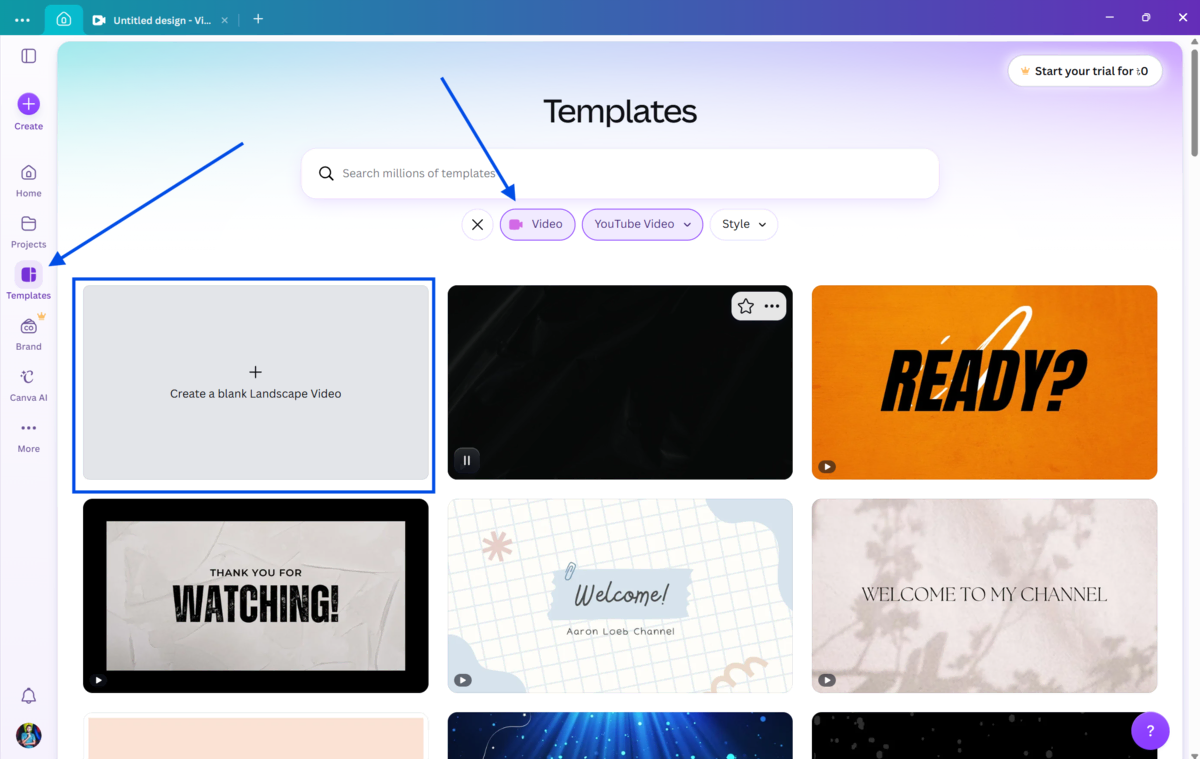
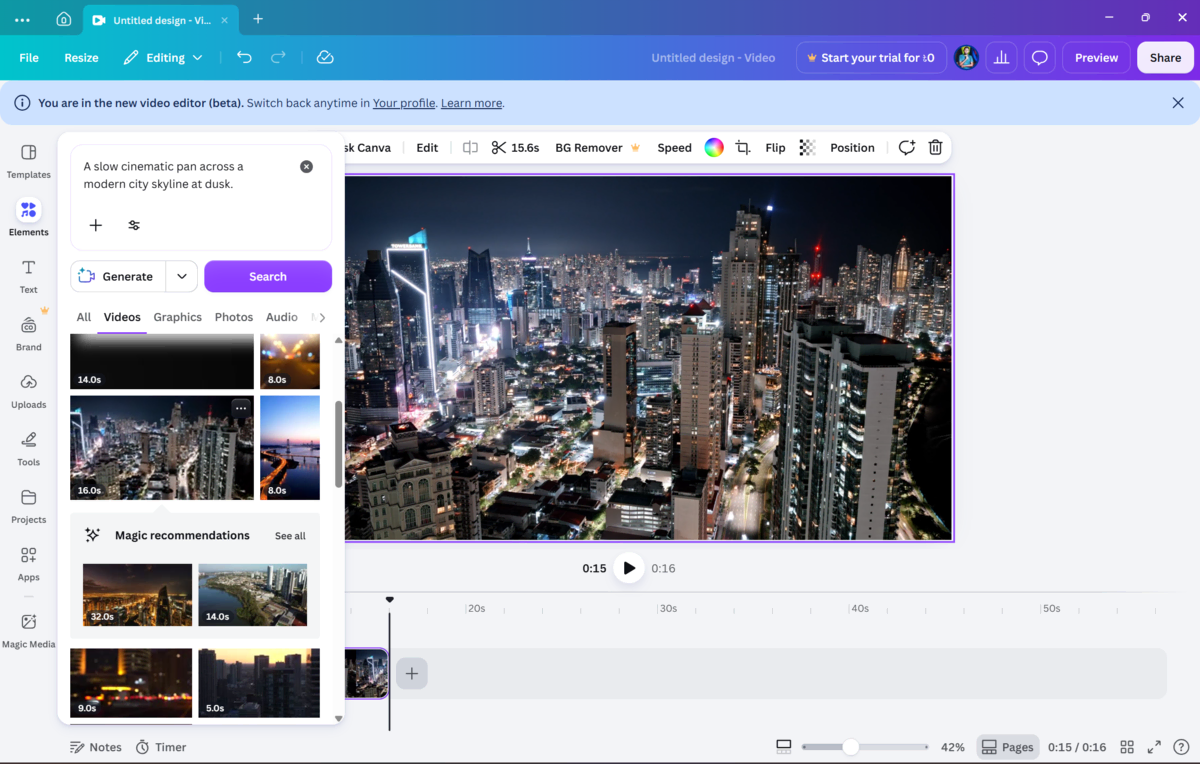
Step 2: Generate Visual Clips with Magic Media. Go to Apps and open Magic Media. Write a descriptive prompt for the clip you need. Be specific about the setting, mood, and motion. For example: "A slow cinematic pan across a modern city skyline at dusk." Download the clip and place it on your timeline.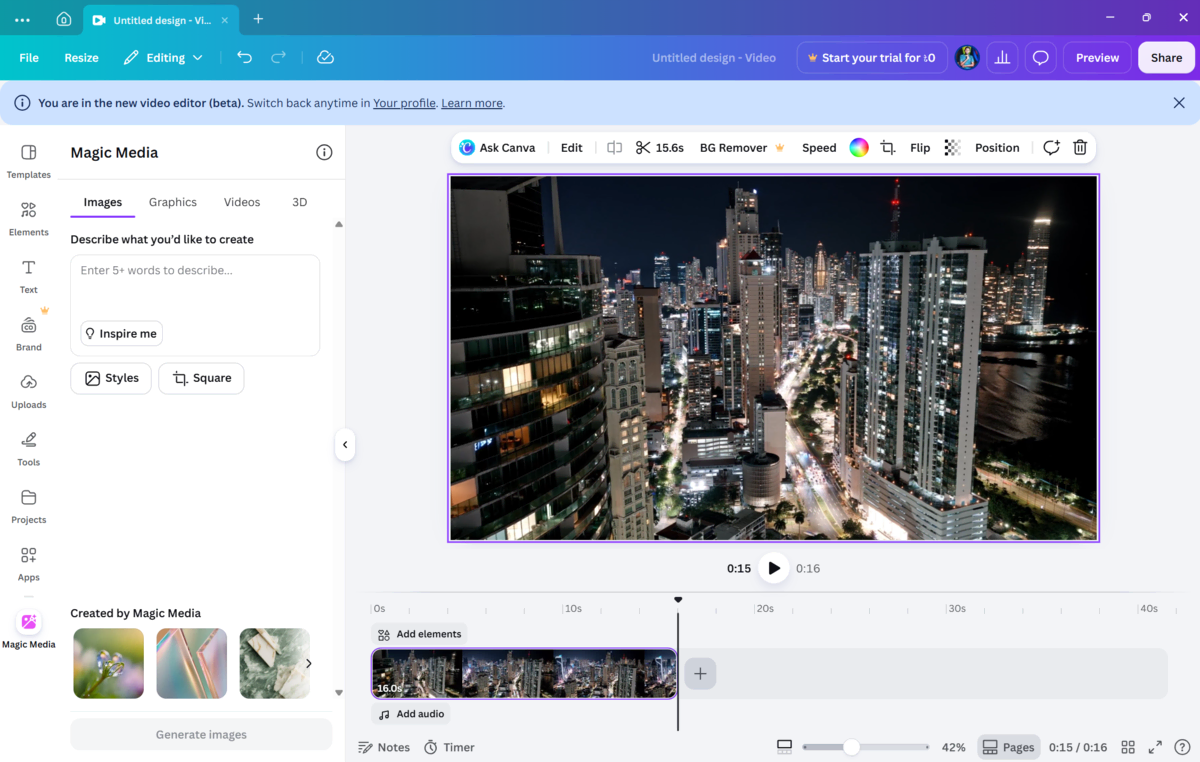
Step 3: Write Your Script with Magic Write. Click on any text element or open a blank text box. Use Magic Write to generate your on-screen text or script outline. Edit the output to match your branded voice and message.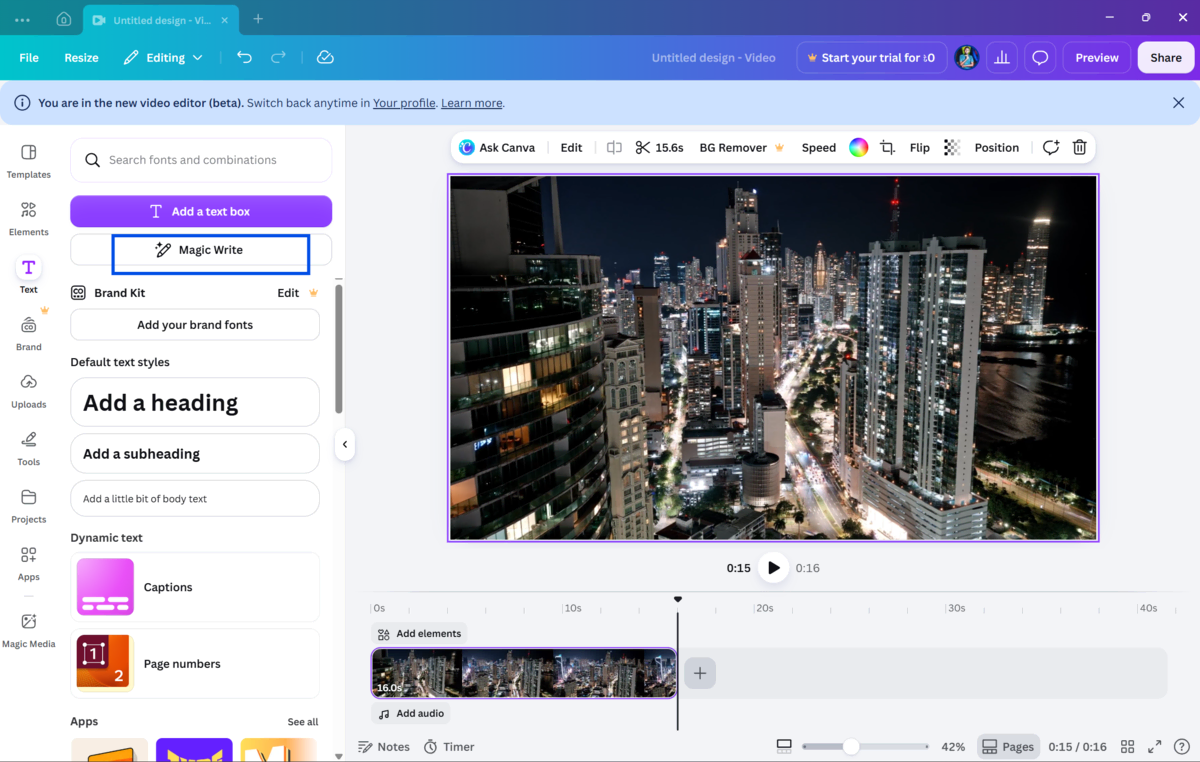
Step 4: Add Motion with Magic Animate. Select the slides or design pages in your video and apply Magic Animate. Review the auto-generated animation style and adjust the timing if needed using the transition settings.
Step 5: Polish with Magic Edit. If any visual element needs adjustment, use Magic Edit to swap out backgrounds, refine objects, or clean up frames with Magic Eraser. This step adds the professional finish that separates good videos from great ones.
Step 6: Export Your Video Once everything looks right, click "Share" in the top right corner and select "Download." Choose MP4 as your format. Canva exports up to 4K resolution for video files.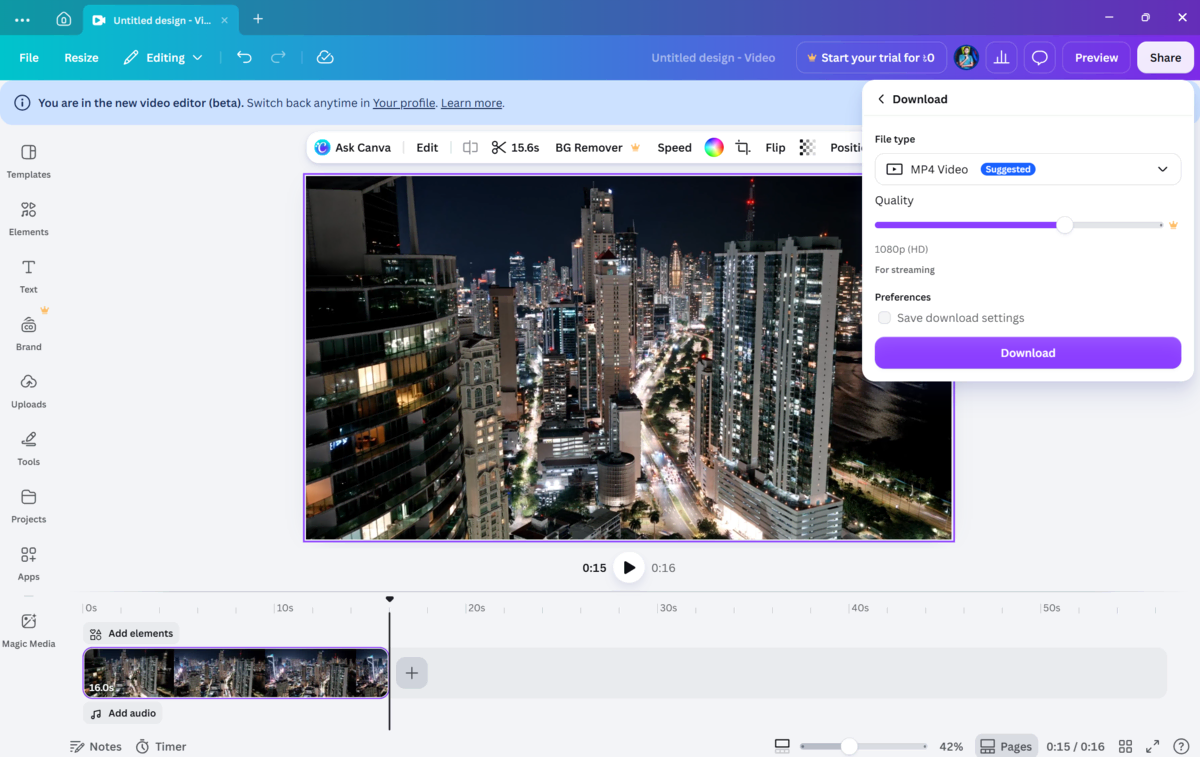
Canva Pricing and Availability
Canva offers four plans for individuals and teams. The Free plan costs nothing and includes 1.6M+ templates, 4.7M+ assets, and up to 200 standard AI uses. The Pro plan costs BDT 6,400 per year and unlocks 141M+ premium assets, 5 Brand Kits, and 10x more AI. The Business plan runs BDT 12,000 per person per year with advanced team tools and 20x AI usage. Enterprise pricing is custom, with organization-level security and 1TB storage.
For educators, Canva offers fully free access to verified K-12 teachers, schools, and districts. Higher education institutions can contact Canva for Campus pricing.
Canva is available on web browsers, Windows, macOS, iOS, and Android, with offline mode across all plans.
If you are not already using Canva, you can get started by downloading it directly from Fileion, a trusted source that hosts the latest version of Canva for quick and easy access.
Final Verdict
Canva Magic Studio makes professional video creation genuinely accessible. You do not need a dedicated video editor, a separate AI tool, or advanced technical skills. The tools are integrated, practical, and built for real workflows.
Magic Media handles visual generation, Magic Write handles copy, and Magic Animate handles motion. Together, they cover the major components of a complete video production cycle inside one platform.
For content creators, small businesses, marketers, and educators, this is one of the most efficient setups available today. It is not perfect, and the AI-generated clips are still short-form. But as part of a broader production workflow, Magic Studio adds meaningful speed and quality to the process.
Frequently Asked Questions
Is Magic Studio available on the free Canva plan?
Some Magic Studio features, such as Magic Write and Magic Animate, are accessible on the free plan with limited usage. Magic Media for video generation requires a Canva Pro subscription for full access.
How long are the videos generated by Magic Media?
Magic Media currently generates video clips of approximately four seconds in length. These are best used as supplemental footage rather than standalone videos.
Can I use Magic Studio on my mobile?
Yes. Canva's mobile app includes access to several Magic Studio tools, including Magic Write and Magic Animate. Magic Media availability on mobile phones may vary by region and plan type.
Does Canva Magic Studio support voiceover generation?
As of now, Magic Studio does not include a native voiceover or text-to-speech generator. You can record voiceovers directly inside Canva using the recording feature, or upload separate audio files.
What video formats does Canva export?
Canva exports videos in MP4 format at up to 4k resolution. GIF export is also available for shorter animated clips.
Comments
Let us know about your thoughts
Explore more articles related to Canva
Here you will find all the latest tips and tricks about Canva. Also you will get many solution of problems which you may face while using this app.

Published at: Apr 18, 2026
7 Canva Design Trends That Will Dominate 2026 And How to Use Them
Your designs feel dated. You're scrolling through social media and noticing everything looks different from...


Creativity Made Effortless Daily.
Canva is an all-in-one creative platform for images, videos, presentations, and AI-powered content. With drag-and-drop tools, templates, Magic Studio AI, and cross-device sync, anyone — from beginners to teams — can design, collaborate, and publish stunning visuals quickly and easily.